A neat feature Joomla offers is the ability to "shorten" a page by grouping its sections into expanding panels — or, to use the proper term, "accordions."
Not every website has this feature enabled. If it's something you'd like to use, please get in touch and we can advise on adding it.
Accordions let visitors jump straight to the section they want on what might otherwise be a very long page. They click a section title, and it expands to reveal the content — text, images, video, document downloads, or anything else a normal article can hold.
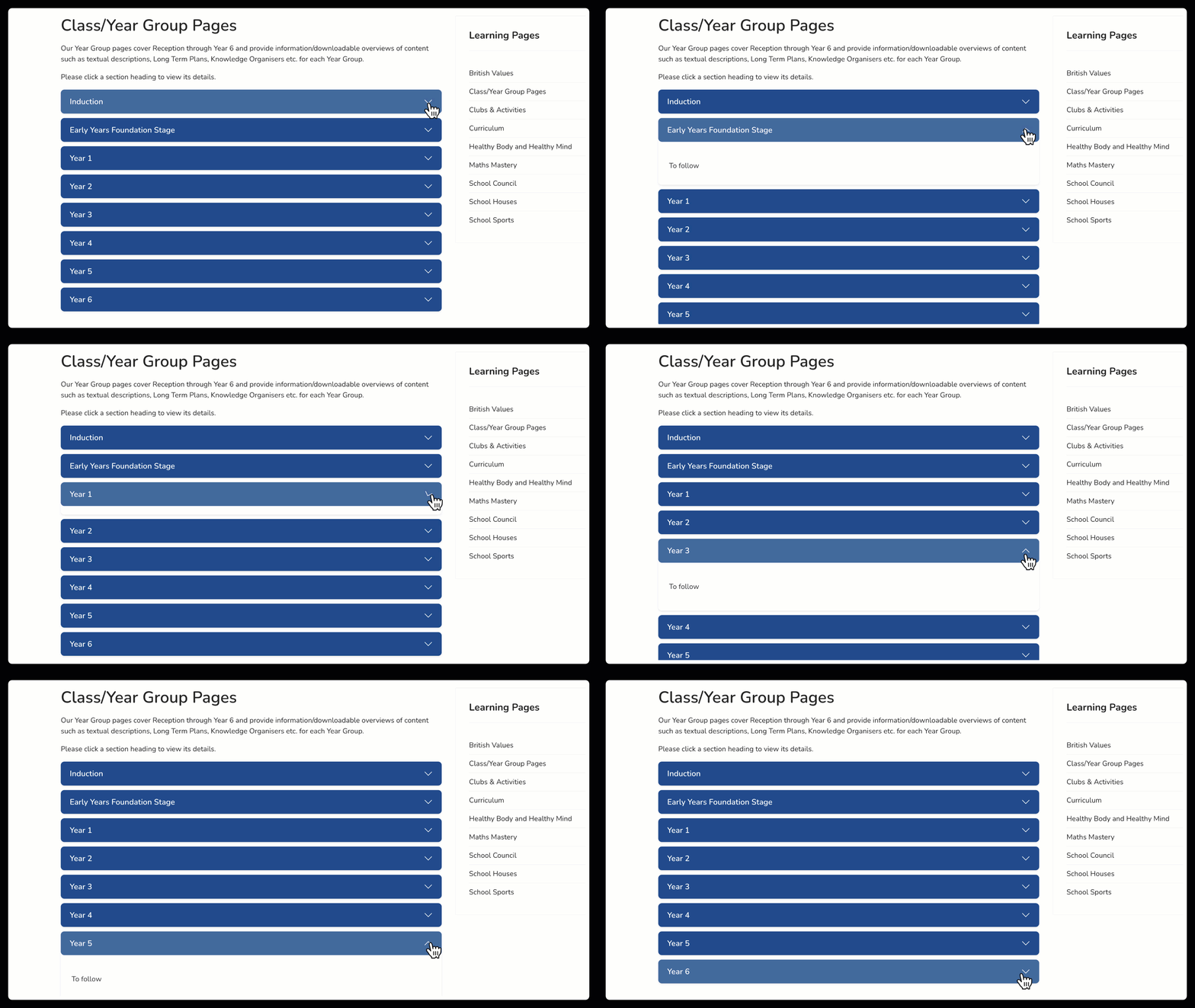
Here's an example of an accordion holding information for different classes or year groups in a school. Notice how each section expands when clicked, and closes again when another section is opened.
How does this work?
Let's look at this in a real setting.
Whenever you see a page using expanding accordions — such as the Year Group page above, which displays information from several year groups — think of it as one page that pulls together several other pages belonging to the same category.
Categories exist to group related pages together, a bit like filing related paper documents in the same lever-arch folder. Once articles are placed in a category, that category's contents can be displayed in various ways — including as an accordion.
Take a Year Group page as an example. On the front end, it looks like our example above.
What you're seeing is a top-level "container" page that introduces the Year Group Curriculum section. Beneath the introduction sits a set of accordions, each one an article for a specific year group.
In the back end, you'd find an article called Year Group Curriculum. Opening it for editing reveals the introductory text, followed by a short piece of shortcode:
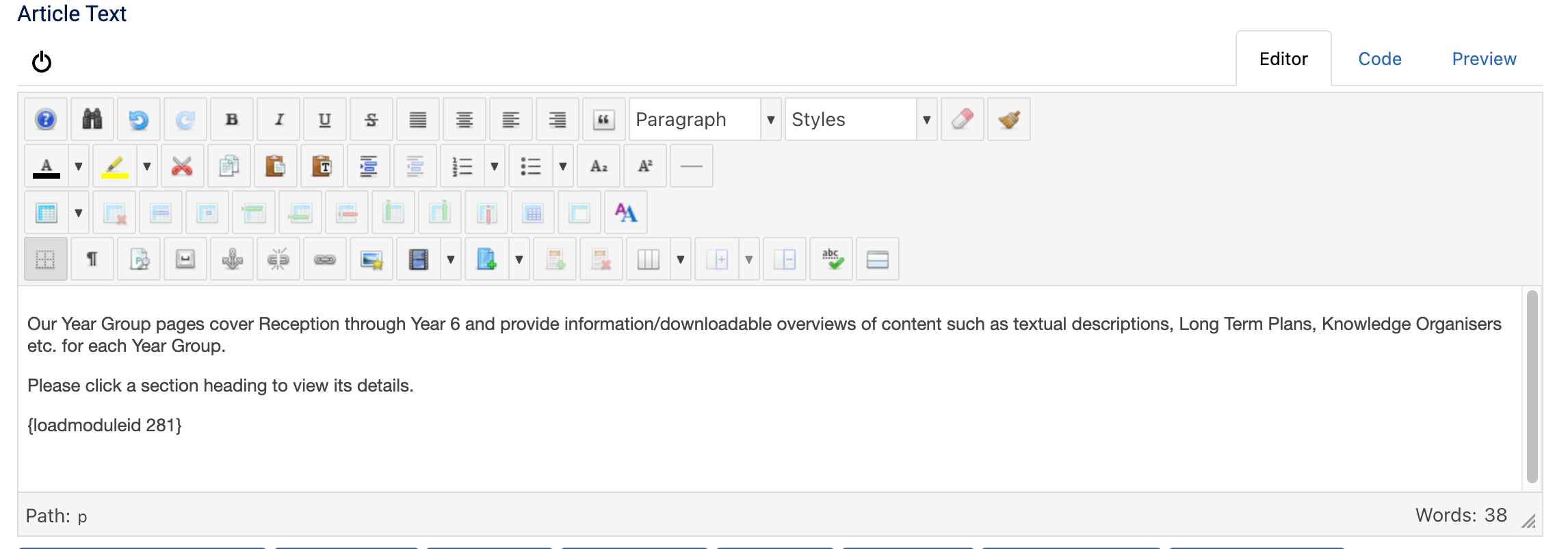
This tells the page to load Module ID 281 from the site database (the ID number will vary from site to site — 281 is just the example here and we will discuss this module in more detail later!)
Module 281 is a Joomla module that looks for articles in a chosen category, groups them together in a set order, and displays them as an accordion — with each article's title becoming a section header. Any article added to that category will automatically appear in the accordion, with no extra editing required.
In the back end of the site, if you look in Content → Articles for this example, you'll see that each year group page is assigned to the Class/Year Group Page Accordion Groups category. There may be other articles with the same title, assigned to different categories too - thats ok!
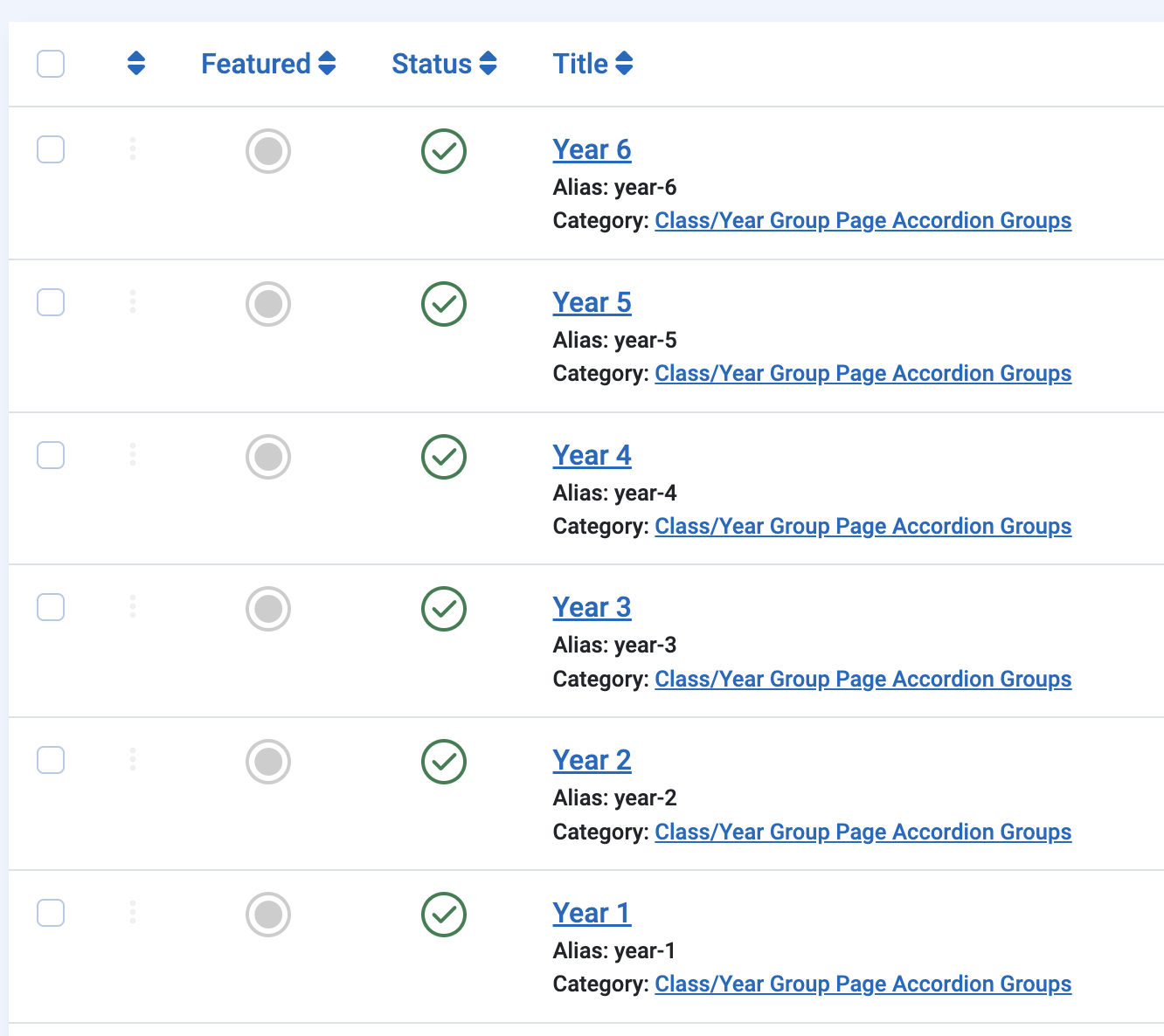
These are straightforward articles, and they all belong to the same category. You will notice that the article entitled "Class/Year Group Pages" which is the top-level container oage, does not belong to the same category as the "Year 1", "Year 2", "Year 3" articles that it shows - if it did, it would end up looping forever!
This is the how we make the Class/Year Group Pages page carry the other pages by setting it in a different category.