Once you have logged into the control panel of your website, you'll notice a section with a heading of "Site," and it will contain a number of clickable buttons, one of which is labelled "Modules."
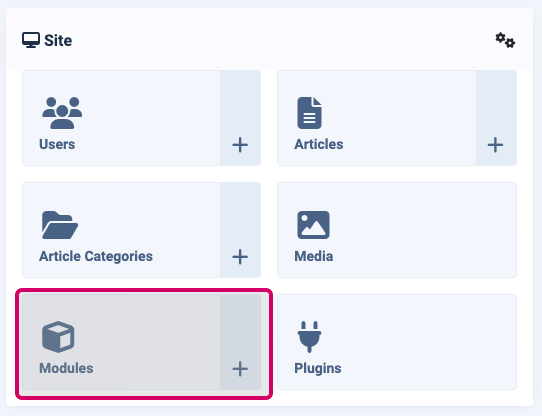
When you click this item, you'll be taken to a page showing all of the current modules that have been created for your site.
If (on a very rare occurrence) you need to edit an existing module, click its title and edit it, and then save when you have completed your changes. The changes you make will determine what is displayed and where it's displayed.
New Module Creation
Note that the modules icon (shown with a red highlight above,) has a plus icon in the bottom right-hand corner. This plus icon allows you to create a new module straight away.
Clicking this plus icon will lead you straight through to give you the ability to select a module type. By default, there are 20-30 different types of module you could use. Items below in bold. Those which are most commonly used. Other modules are rarely used and can be ignored.
- Articles
- Banners
- Breadcrumbs.
- Forms.
- Custom HTML module
- Drop files downloads & Search
- XML feed display.Photo content.
- Language switcher for websites which must be presented completely in different languages.
- List of latest logged-in users.
- A login form.
- A menu of items.
- A random image.
- A sophisticated page layout using page builder
- A search function.
- A clever way to show articles in different layouts.
- A slideshow.
- Statistics information.
- Smart syndication feeds.
- Content tags.
- Web links.
- List of who is currently online.
- A wrapper for third-party content.
The selection page looks a little bit like this.
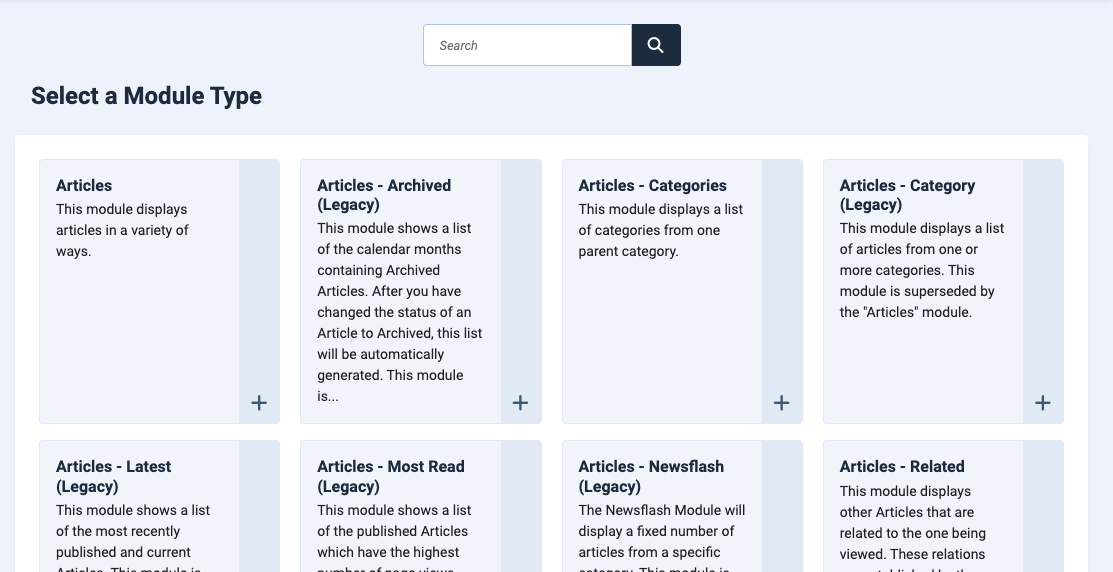
Click on the plus icon for the module type you're interested in adding to your page, and then follow the form choices given when you reach that configuration setting. Every module is configured differently, and therefore you may need support from us to reach the objective you're looking for!
Common Configuration Options for all Modules
Regardless of the module type you are creating for your page, all modules will have the following choices for you to pick, which will determine its visibility. These choices are normally shown on the right-hand side of the configuration page for the module:
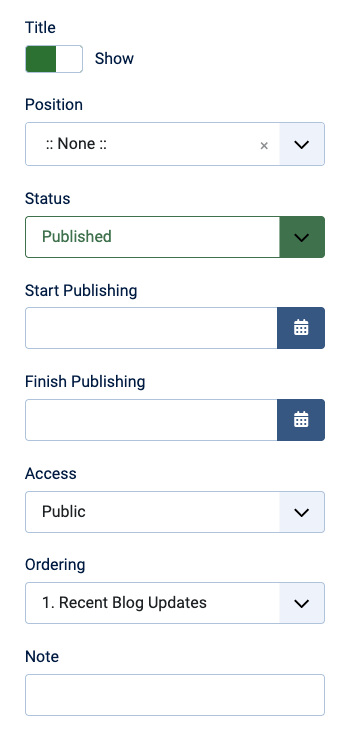
Let's run through what these mean.
Title: If you leave this option as "Show," then the TITLE of the module you create will be displayed above it on the page.
Position : This determines the position of the module on the page you are going to show it on, such as left or right, bottom or footer. This is covered in much more detail on this page.
Status: If you want the module to be displayed at all, set this to "published." Otherwise, change it to "unpublished."
Start publishing and finish publishing: Just like other areas of the website, you can set a timer for when a module will be displayed and when it will switch itself off.
Access : Generally, comment, you should leave this as public. Otherwise, you'll limit who can see the module!
Ordering: You normally don't need to change this comma, so you can ignore this field.
Note: If you wish to, you can create a little note which will be displayed on the list of modules, so you know what the module is all about at a later date, for other people as well.