When publishing long-form documents—like official policies—providing a simple Word or PDF download often isn't enough. For true web accessibility and a seamless user experience, your content should live directly on the page. In fact, this is becoming a government directive and by 31 July 2026, schools must be able to publish key documents on their website so they are fully accessible to the outside world - In other words, readable on the page rather than a downloadable document.
However, a simple "copy and paste" from Microsoft Word often creates hidden issues. While the text looks fine in your editor, Word embeds a massive amount of invisible, proprietary formatting code. In the web world, we call this "code bloat."
Why Avoid Code Bloat?
-
Performance: Unnecessary code makes your pages heavier and slower to load.
-
Visual Consistency: Hidden Word styles can conflict with your website’s design, making the layout look messy or broken.
-
Accessibility: Bloated code can confuse screen readers, making it harder for users with visual impairments to navigate your content.
To solve this, we’ve developed a streamlined process to "purify" your content. This guide will walk you through converting your Word file to a standard HTML page and then using our Word HTML to Clean WebPage tool to strip away the bloat while keeping your formatting intact.
Saving your Word file as HTML
The first step to follow is, when your Word file has been completed is to use File >> Save As and in the File Format chooser select "Web Page Filtered (.htm)".
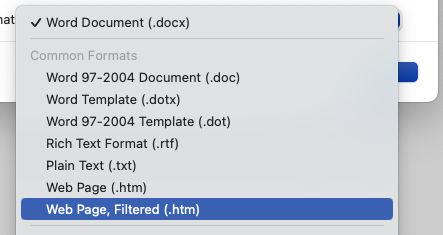
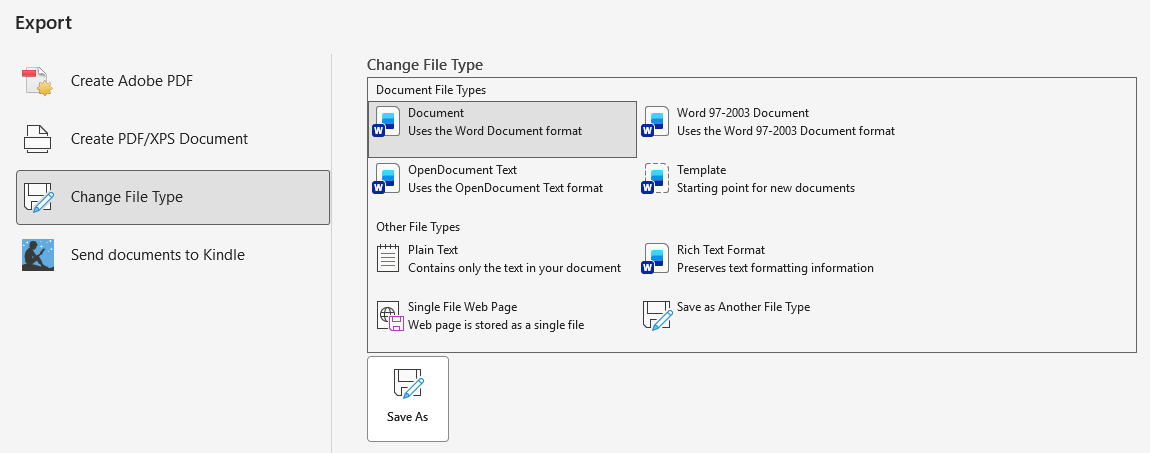
If you are using a different version of Microsoft Word, you'll need to Export your file.
Choose Export, then Change File Type and Save As and in the File Format chooser select "Web Page Filtered (.htm)".
You may then be prompted to confirm that you wish to do this. You can safely say Yes - remember, we are doing this because we wish to get rid of the standard Microsoft bloat, which is not required for our webpage.
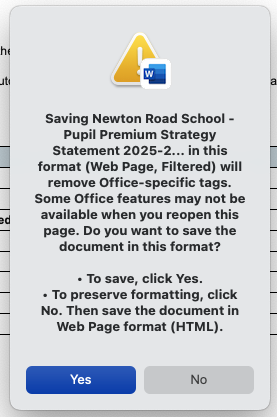
This action will create and save a version of your Word document, now with an extension of .html.
Now, you can use a special tool that we're provided to help to tidy up the exported HTML page.
Using the Word HTML to Clean WebPage tool.
Navigate to https://itlookslikethis.co.uk/ms2html
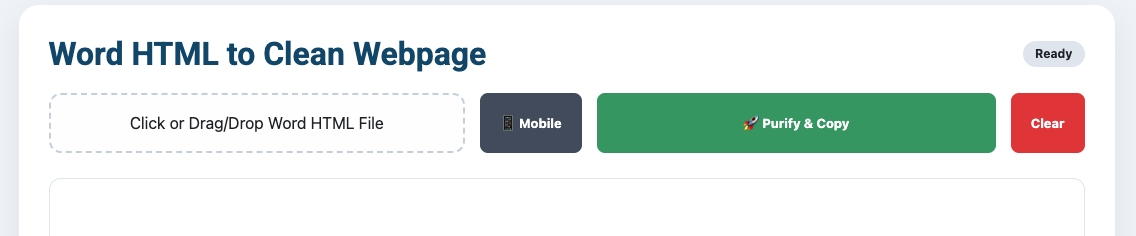
This page contains a panel where you can upload your exported HTML page and then "Purify" it to get rid of any remaining Microsoft bloat that we don't need for a web page.
How to Use the Word HTML Purifier
-
Upload Your File: Click on the dashed "Click or Drag/Drop Word HTML File" area to select the
.htmlor.htmfile exported from Word. You can also drag and drop the file directly into this zone. Note that the webpage will only work for HTML or HTM format files. -
Preview the Result: Once uploaded, a cleaned version of your document will appear in the preview box. The tool automatically removes Word's "unnecessary" code, fixes any broken characters (like curly quotes), and adds an Estimated read time at the top. It's not completely infallible, but testing shows that it clears 99% of the unnecessary Microsoft code.
-
Test Mobile Layout: Click the "📱 Mobile" button to toggle between a desktop view and a narrow mobile-width view to see a simulation of how your content will look on a smartphone. Click the button again to turn back to desktop view. Note this button is not needed or displayed on mobiles for obvious reasons.
-
Direct Editing: The preview area is "content-editable." This means you can click directly into the text to make final tweaks if you find any before you copy it.
-
Export the Content: * Click "🚀 Purify & Copy" to copy the formatted content to your clipboard, which can now be pasted into a Joomla article.
-
If you need the actual code, scroll down and click "View Raw HTML Source" to copy the underlying HTML tags.
-
-
Start Over: Use the "Clear" button to reset the tool and prepare it for a new document.
once you have imported your HTML document the tool will look something like this:
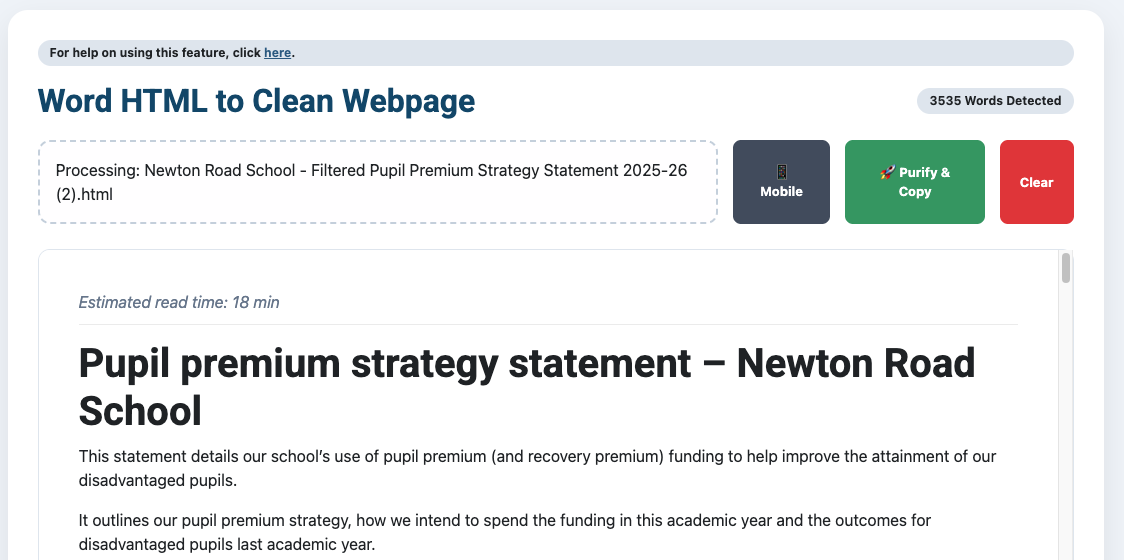
Once you have your copied content (using the Purity & Copy button), you can then either create a new article within Joomla or you can edit an existing article page. You can then paste the content directly into the article editor. Once pasted, give your pasted content a once-over by eye, make any tiny tweaks as needed, and then save your article.