To get your Google Calendar into DPCalendar we use the iCal plugin, (installed for you on request) to grab the Secret Address in iCal format from Google. This allows DPCalendar to read your events without making your calendar completely public to the entire world.
Tapiochre will set this up for you but you, as the Calendar owner at Google need to provide certain information to make it possible.
Here is the step-by-step guide to finding the correct URL and plugging it into Joomla.
Step 1: Get the iCal URL from Google Calendar
-
Open Google Calendar on a desktop browser.
-
In the left sidebar, find the My calendars or Other calendars section.
-
Hover over the specific calendar you want to connect with the website, click the three vertical dots (options), and select Settings and sharing.
-
Scroll all the way down to the bottom of the settings page until you find the Integrate calendar section. You will see three or four grey shaded code blocks.
-
Look for the field labeled Secret address in iCal format. Its value will be 'hidden' like a password. If you need to see it, click the 'eye' icon.
⚠️ Important: Do not use the "Public address in iCal format." option. Always use the Secret address so DPCalendar can access it securely.
-
Click the Copy to clipboard icon next to that long URL.
-
You will see a Security warning popup box. Click OK
-
The link will now be copied and you should send it directly to us as it is, no edits for us to add to your website DPCalendar configuration.
-
For reference, the copied information will look like this:
-
It should end with
.ics.
Step 2: Add the URL to DPCalendar in Joomla
Once we have that .ics link, we then:
-
Log into your Administrator dashboard.
-
Navigate to System > Plugins
-
Find and open the DPCalendar - iCal plugin. Ensure its status is set to Enabled.
-
Click New to create a new iCal calendar instance
- In the Plugin tab:
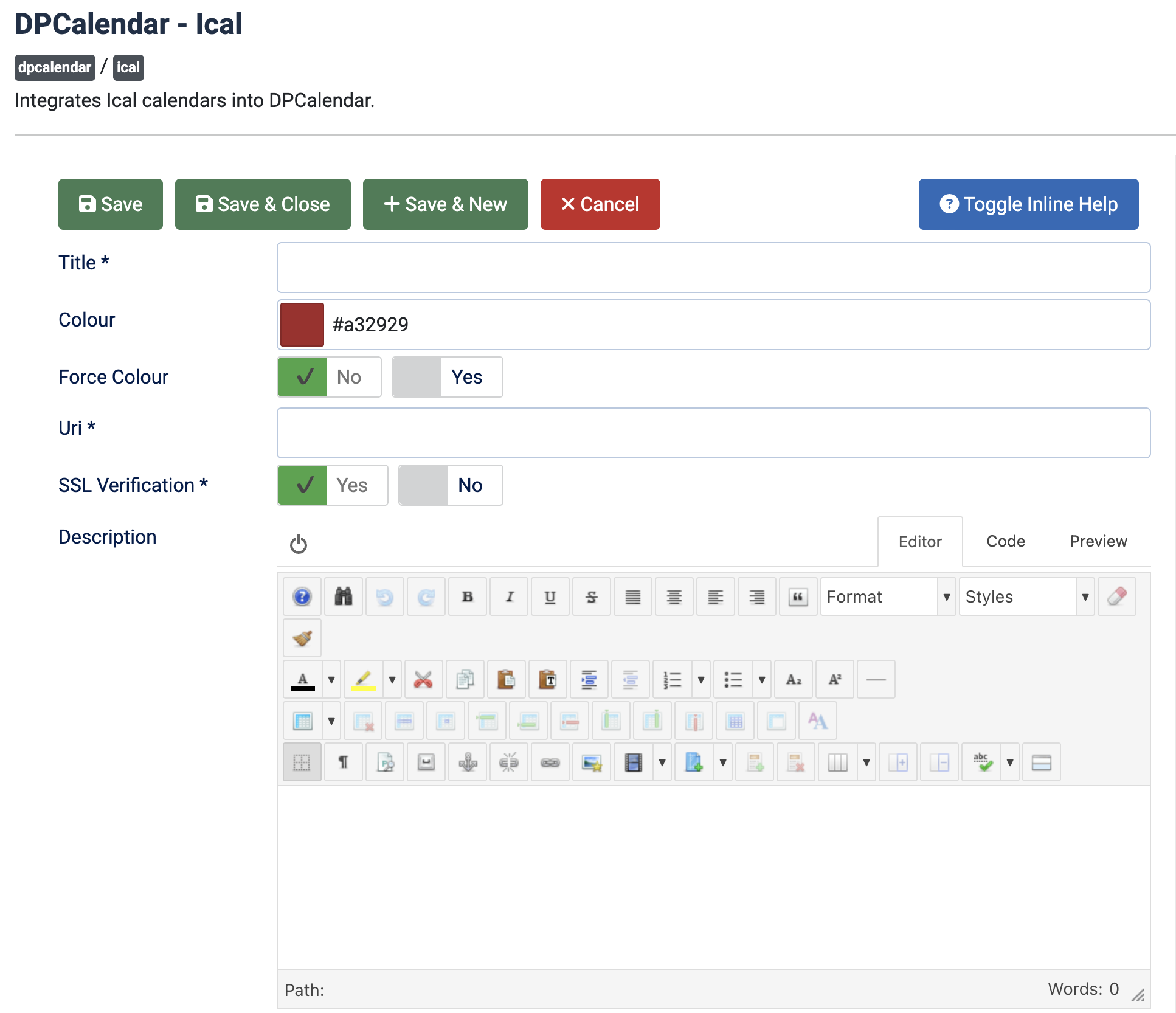
- Title: Give it a name (e.g., "My Google Calendar")
- Color : Choose a color from the swatch that matches the school color scheme
- Force Color : Leave as No
- Uri: Paste the URL copied from Google into the URI field.
- SSL Verification : Leave as Yes
- Description : (Optional) Provide a simple description as to what this calendar is about.
Look now at the Advanced tab
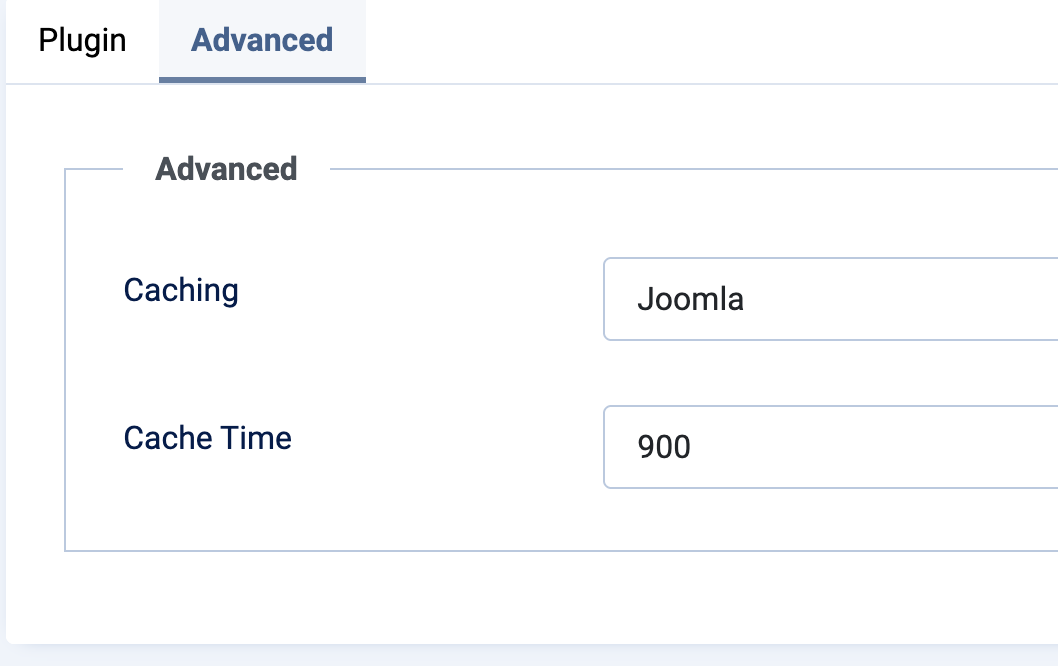
- Caching : Set to Joomla
- Set the Cache Time (in seconds, 900 is 15 is ideal so your site isn't constantly making requests to Google's servers, but still updates relatively quickly but NOT instantly).
Go back to the Plugin tab

- Click the GREEN Save & Close. This will show you the list of iCAL connections ready to use:
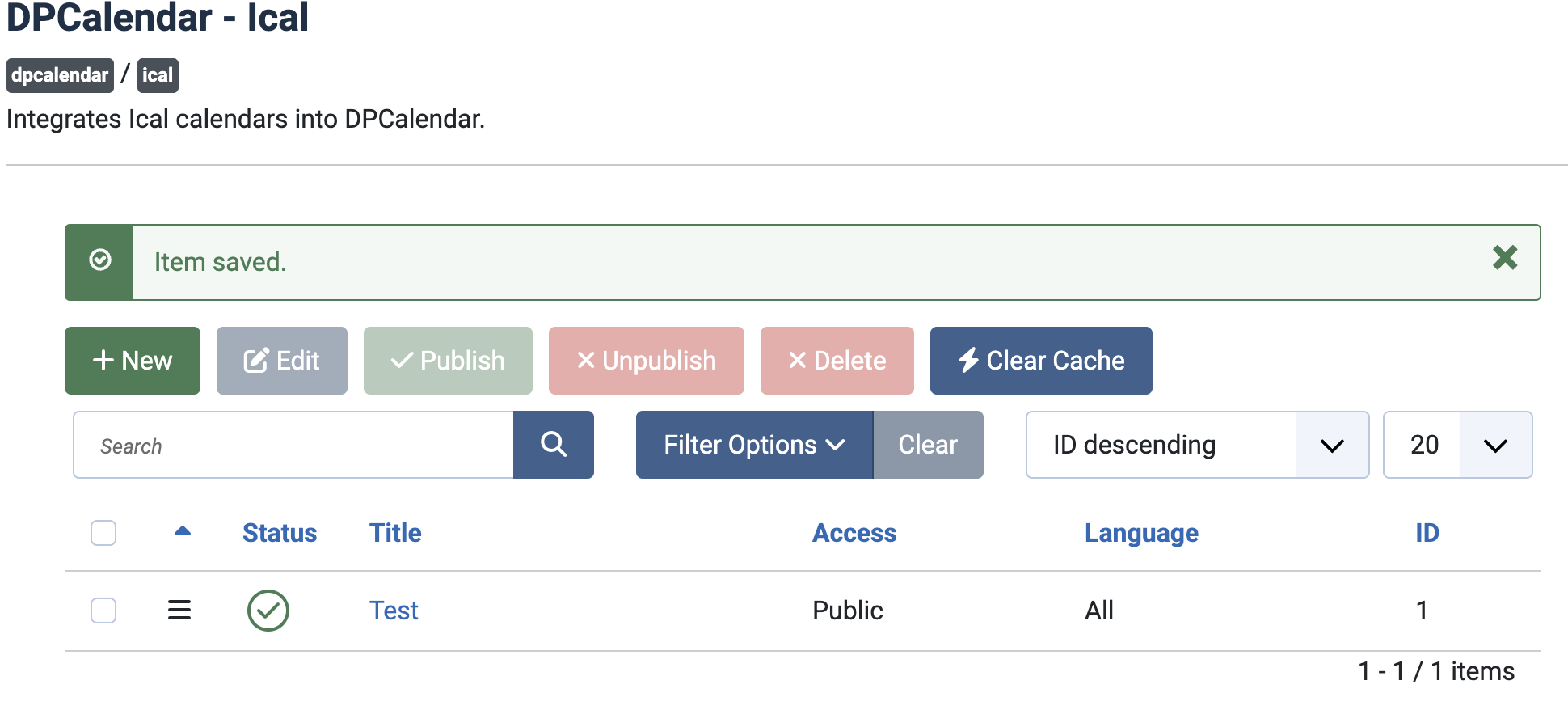
- Now click "Save and Close" from the top bar to exit back to the list of all Joomla Plugins.
💡 A Few Quick Troubleshooting Tips
-
Empty Calendar? If the events don't show up immediately, clear your Joomla cache or wait for 15-20 minutes.
-
Two-Way Sync? Keep in mind that the iCal integration is typically read-only. Events you add in Google will show up on your Joomla site, but you won't be able to edit or add Joomla events and have them sync back to Google.
-
Secret URL Reset: If you ever accidentally click "Reset secret urls" in Google Calendar, your current Joomla connection will break, so you'll need to copy/paste the new URL using the steps above.