So far we have helped you to understand why large images are bad for websites. When we talk about “optimising” images for the web, you can think about images that will (or should)
- look good
- load quickly
- make images easy for search engines to index
The remainder of this section will take you through the process of resizing (optimising) pictures for use on your website from start to finish, because adding images to a website needs a little preparation.
There are a series of steps that we recommend which will make things work better for the website and for you.
Ready the images ready for the website
Best Practice : Its always best practice to optimise your photos etc. before you upload them to the site. Even though the website can resize your pictures for you when you upload them, doing this puts excess load in the website server that can either slow things down or (ultimately) fail the resize process altogether so, where possible we always recommend resizing the image prior to uploading them.
To optimise a large image for the website, you’ll need to reduce its size (MB) and then upload the resulting smaller version to your website (more on that below).
Starting with a large format is ideal, because you can always make a large image smaller; making a small image larger won’t work so well as it will pixelate and become grainy in appearance.
That said, there are times when you WILL want to use large images on your website, such as for your home page slideshow. In these cases, if you use low-quality images and try to blow them up to be big enough, it will look fuzzy and horrible. We cover slide shows later in this guide.
So how do you strike the right balance between size and quality? How do you even find the file size, image size, and resolution of your image?
Looking at your file
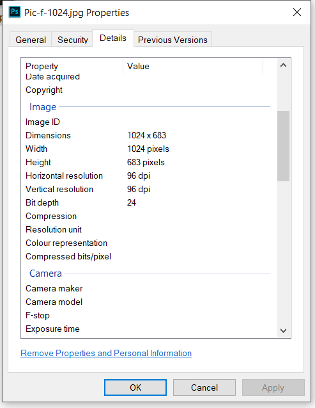
You can find the file size and image size of your photos right on your computer. If you’re on a Windows machine, right-click on the image file.
Choose “Properties” and the General tab will show you the file size in kB or MB. The “Details” tab is where you’ll see the pixel dimensions and the resolution in dpi.
This example shows that the file is 1024x683 pixels in physical size.
On a Mac right click on the image file and choose “Get Info.”
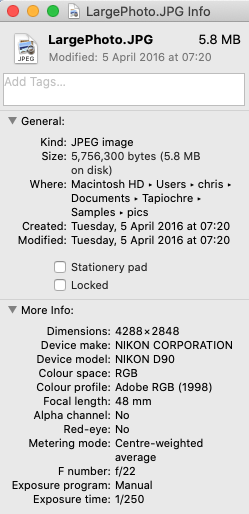
In this instance, the file is 4288x2848 pixels in size.
Cheat Sheet for image size, file size, and resolution
|
Application |
Size Notes |
|
Large images for slide shows or full-screen background images |
Max 1Mb |
|
Most other small web graphics |
300 KB or less |
|
Saving all images in Windows application |
If you have the option, always “Save for web” which will give your image a web-friendly resolution. |
Is Dots per Inch (DPI) relevant?
When sizing images for a website, the dpi (dots per inch) does not affect the file size of the image in terms of its dimensions in pixels or its storage size on disk.
Pixels and File Size
An image that is 2000px wide remains 2000px wide regardless of its dpi.
The file size (in terms of kilobytes or megabytes) of a 2000px wide image is the same whether it's set to 300dpi or 72dpi, assuming the same file format and compression settings are used.
DPI Context
DPI is a measurement of print resolution, not screen resolution.
For web use, what matters are the pixel dimensions (width and height in pixels), not the dpi setting.
Example:
- A 2000px wide image saved as a JPEG file at 72dpi and the same image saved at 300dpi will have the same dimensions (2000 pixels wide) and the same file size on disk.
- The dpi setting is only relevant when printing the image, as it determines how many pixels per inch will be printed. For instance, at 300dpi, a 2000px wide image would be printed about 6.67 inches wide, while at 72dpi, it would be printed about 27.78 inches wide
For web usage, we focus on the pixel dimensions (e.g., 2000px wide) and optimize the image for web use (e.g., using appropriate compression). The dpi setting is irrelevant for web display.