Let's assume that you have an existing weblink to a document on the Every system. On the front end of the website we simply see a link such as:
or it might have a different view, such as

Either way, its just a link!
When clicked the link will give access to the document but what if, for some reason, the link has to change? Well here are the step to make that happen.
Edit the Article that contains the Link(s) that need editing
Normally, Every links are on your Policies page, so look for the Policies article.
When you are in edit mode, you will see a list like this:
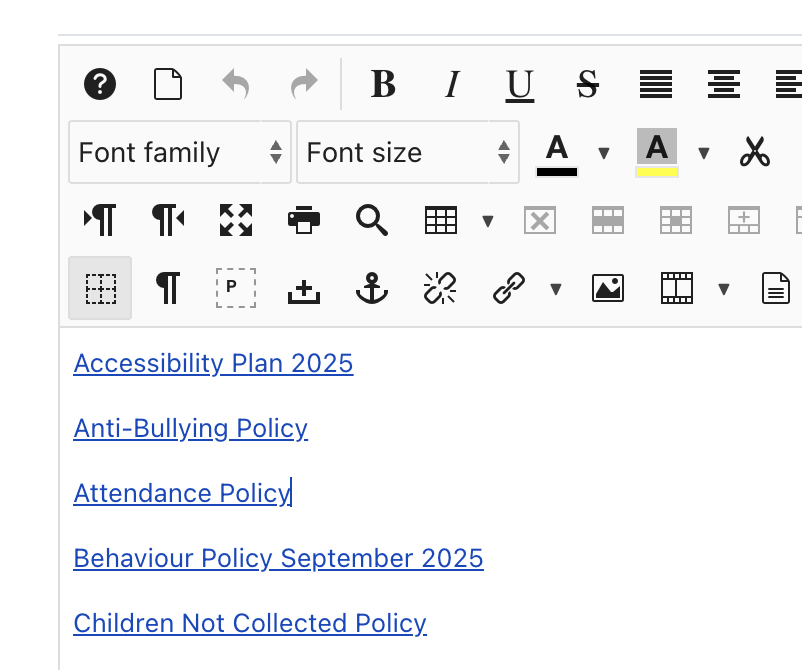
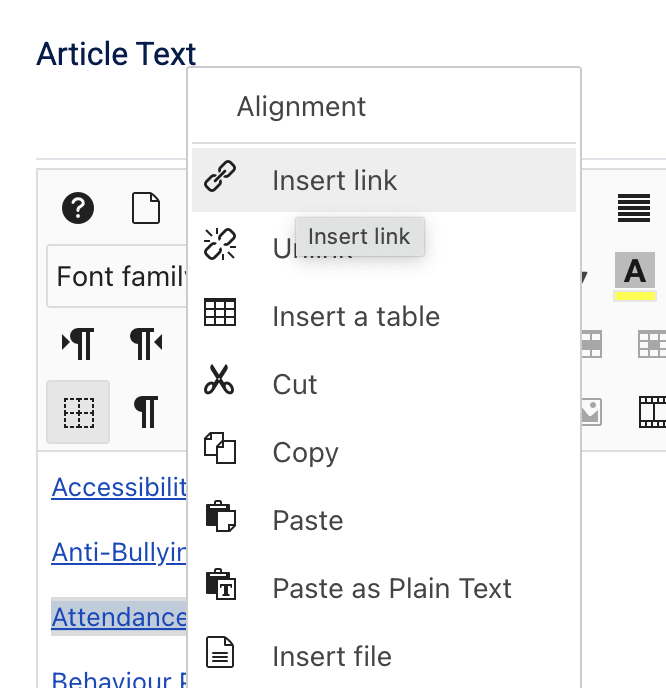
Click your mouse on the link that you need to edit - it will become highlighed in grey, (example "Attendance Policy") and then use the Right Click and choose "Insert Link":
A popup screen apppears labelled "Link"
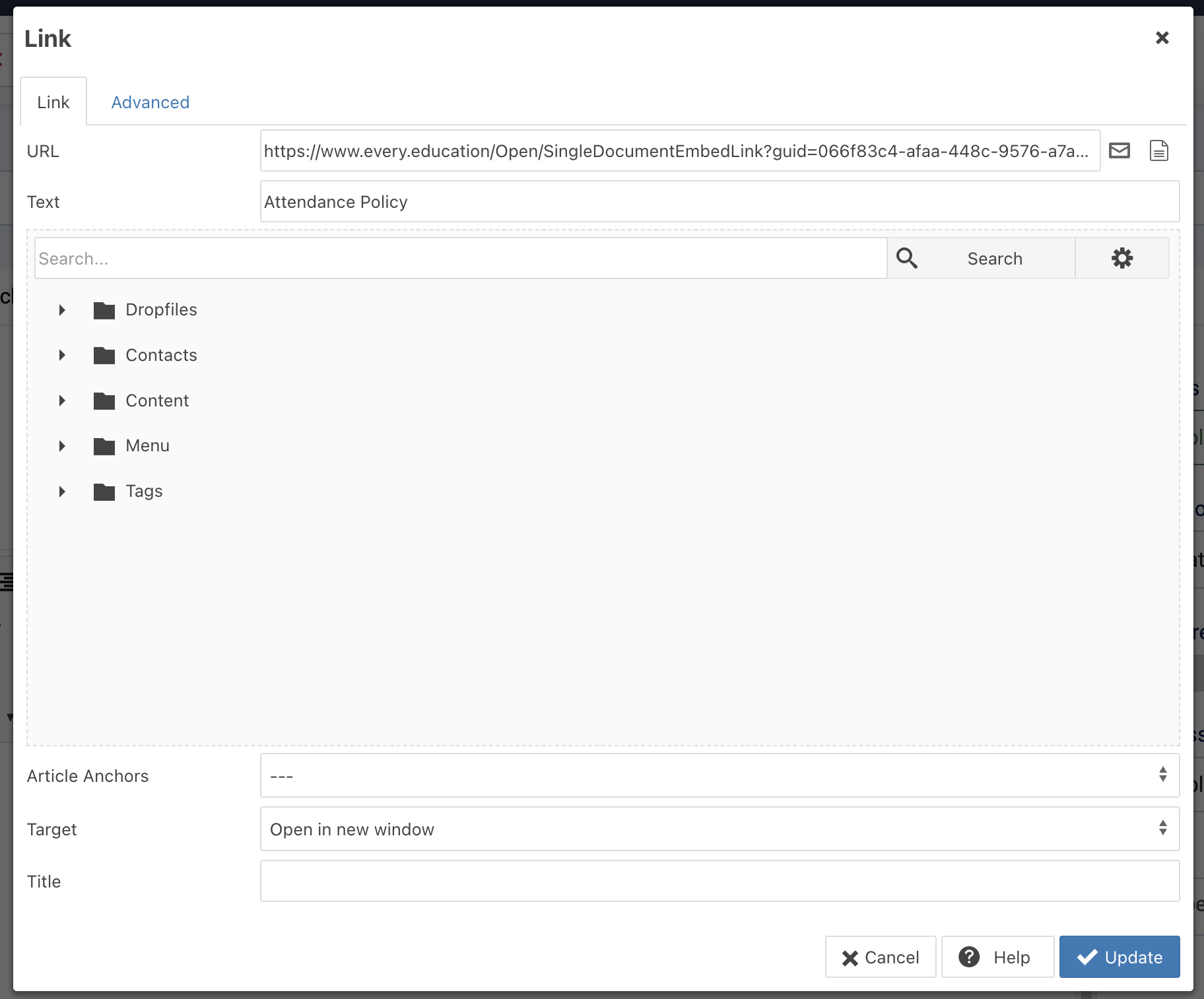
Note the URL field shows the current live web address for the link. Click into the URL field and delete it all so its empty:

Now, paste your NEW URL into the URL field and, clicking the "Update" button to the bottom right, update the URL and the Link popup will close.
Finally, if there are other links to be updated, follow exactly the same procedure as above.
If there are no other links to update, you can now click save and close and your updating has been completed.