When a form is submitted by a web visitor, different actions can take place and the default is to display a success message.
The banner that visitors see looks like this when their message is sucessfully sent:

In most cases this message will serve its purpose without a change but you may have some forms where a different message is more appropriate. This page will show you how to apply a different 'Thank you...' message for a form.
In Convert Forms, when you edit a form, the side bar will show different icons, the bottom one being a Circle icon for the Submission settings:
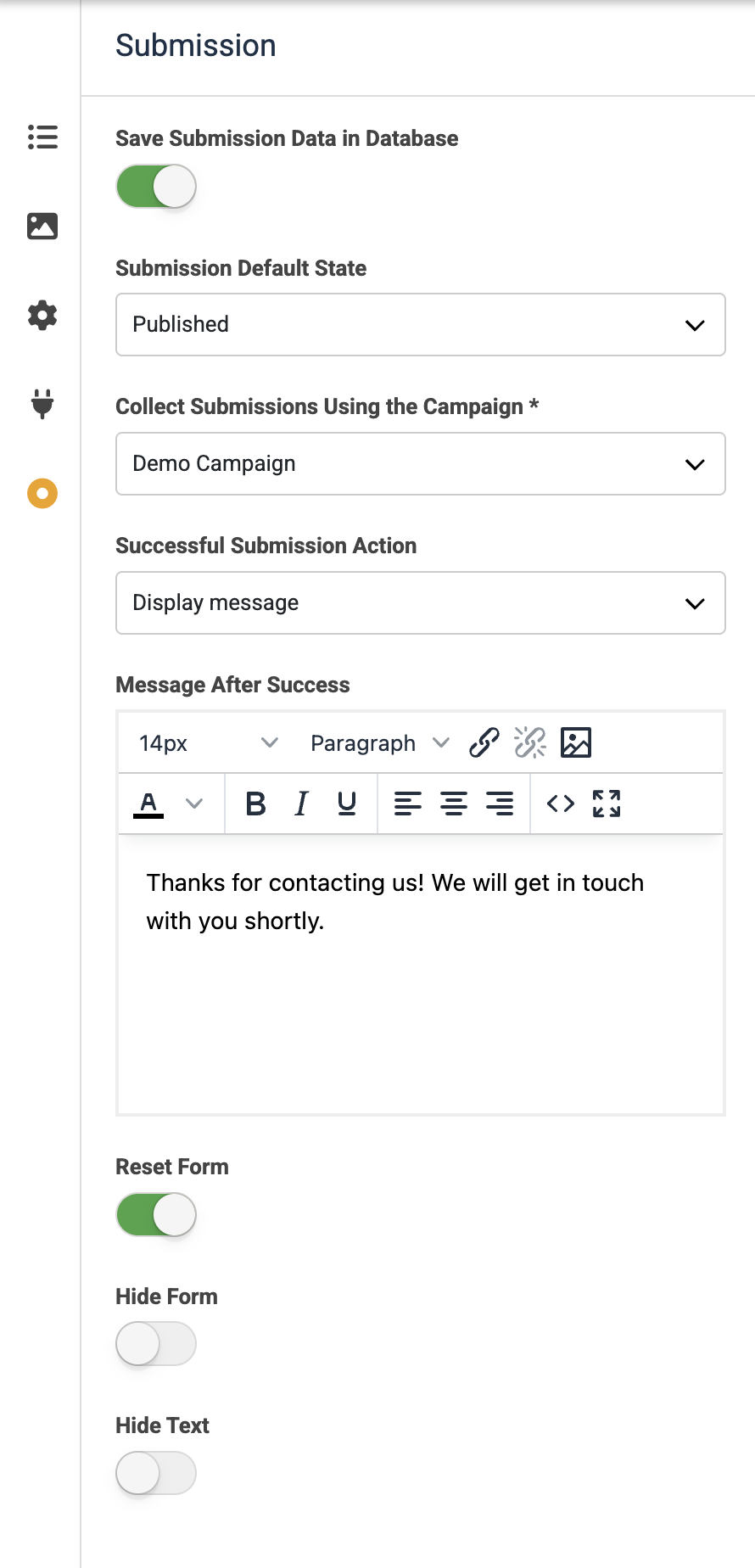
The default setting for Successful Submission Action is "Display Message" and the message to display is shown in the Message After Success box.
You can edit the text in the Message After Success box to suit the needs of the form in question. Note that you cabn use Word like formatting in the message (ie. bold, italics etc.). When you have made the required changes, simply click the SAVE button to the top right and then the X to close the edit session.