A clever feature of Engagebox is that if someone has created a pop-up that you like, you could contact them and ask them to export it and send it to you as a file, that you can then import into your own platform.
Further down this page, you will notice that we have provided a downloadable EBOX file for school closures that you can import into your own website, tailor and then activate when needed.
Exporting an Engagebox pop-up.
To do this, go to Components > Engagebox > List
Select the pop-up that you wish to export by ticking the box to the left of the list item:

Then, from the Actions dropdown at the top of the page, choose Export.
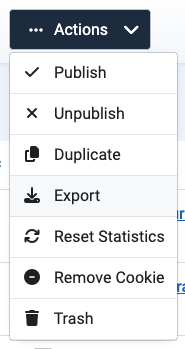
A file will be downloaded With a file name "EngageBox Item (school_closure_popup).ebox" [Using the example of the screenshot above]
This eBox file can then be sent to another Engagebox user.
Importing a pop-up.
To import a pop-up file, go to Components > Engagebox > List
Next, click on the New drop-down option at the top of the page and choose Import.
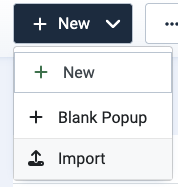
This will cause the page to move to the import pop-up feature.Click on the Choose File button and select the EBOX file from your computer.
Then click the blue import button.
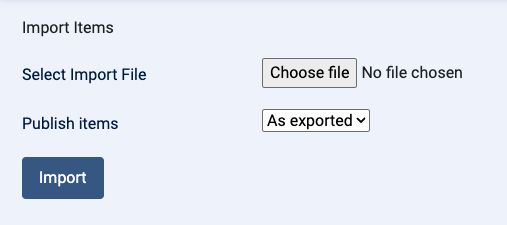
Once you do this, the pop-up will be imported into your list of available Engage boxes and you can edit it to suit and enable/disable it.
You can actually try importing for yourself. Below is a link to an EBOX file for a School Closure message. Click it to download it, and then follow the instructions above to import it into your own website.
| Title | Size | Hits | Download |
|---|---|---|---|
| ebox EngageBox Item (school_closure_popup) | 5.70 KB | 409 | Download |