Enabling Basic Randomisation
If you have a large number of slides (e.g., 20+) and want them to appear in a different order every time the page loads, follow these steps:
-
Open your slider in the Smart Slider 3 dashboard by clicking the Edit button on the thumbnail image.
-
Click on the Slides sub-tab
-
Move to the Randomize section.
-
Toggle Randomize slides to ON.

Note: For this to work truly "randomly" on every page load, ensure that Cache Support is turned OFF in this same section. If caching is left on, the slider will generate one random order and stick to it until the cache expires.
Setting a "Fixed First Slide" with Random Others
To always show your most important slide first while shuffling the rest of your large collection, you need to use the Randomize First and Set as First features together.
-
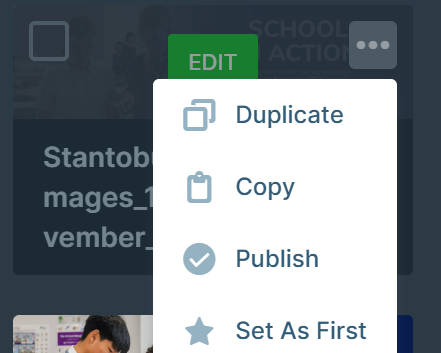
Step 1: Look back at your thumbnails of your slides and designate your "Always First" Slide, to do this, find the slide you want to show first. Hover over it, click the three dots (More), and select Set as First. This slide is now the "index" slide.
-
Step 2: Go back to Settings > Slides and look at these two specific toggles:
-
Randomize slides: Turn this ON. This shuffles the entire deck as above
-
Randomize first: Ensure this is OFF.
-
Why this works: In Smart Slider 3, the "Randomize First" setting specifically tells the system whether it should pick a random slide to start the show. By turning Randomize slides ON but keeping Randomize first OFF, the slider will shuffle the order of all slides but will always honour your "Set as First" designation as the starting point for the sequence.